



How to Add and delete users in Azure Active Directory?
How to Add and delete users in Azure Active Directory
You need to add member user accounts for the new developer team in your organization.
In this exercise, you'll create a new Azure Active Directory (Azure AD) organization to hold all of your user accounts. You'll also create a user account, delete a user account, and learn how to recover a deleted user account.
Create an Azure AD organization
Create a new organization to hold all of the users you create in this exercise.
-
Sign in to the Azure portal with the same account you used to activate the sandbox.
-
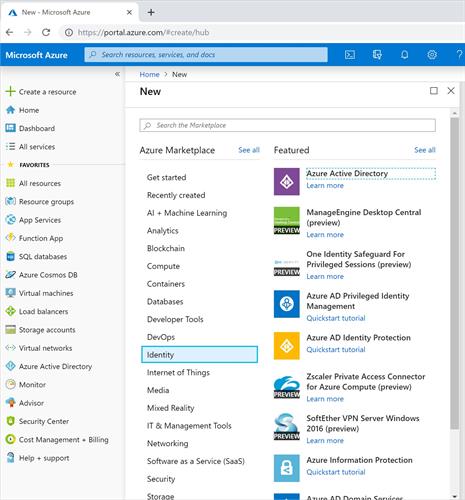
In the left navigation pane, select Create a resource > Identity > Azure Active Directory.
-
On the Create directory pane, enter the following values:
- Organization Name: Contoso Marketing Company
- Initial domain name: contosomarketingXXXX where you replace XXXX with numbers or letters to make your domain name unique
-
Select Create.
-
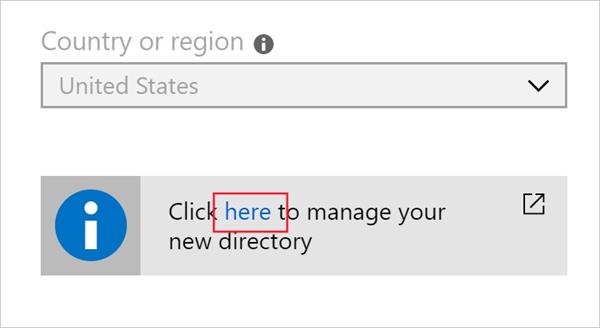
Wait for the creation of your organization to be completed. Note the full domain name, which includes on.microsoft.com. When complete, switch to the new organization by selecting the link in the gray box under the Country or region field.
You've now created a new organization.
Get a free trial for Azure AD Premium
You'll need to activate a free trial for Azure AD Premium to complete all the exercises in this module.
-
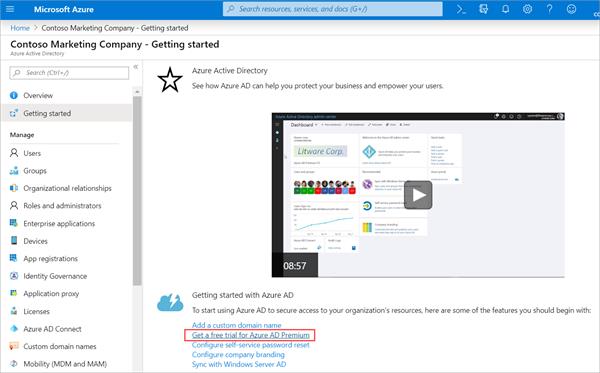
In the organization you just created, select Getting started.
-
Under Getting started with Azure AD, select Get a free trial for Azure AD Premium.
-
Under Azure AD Premium 2, select Free trial > Activate. If you don't have that option, that's ok. You can complete most of the exercises without it.
-
In the left pane, select Overview.
-
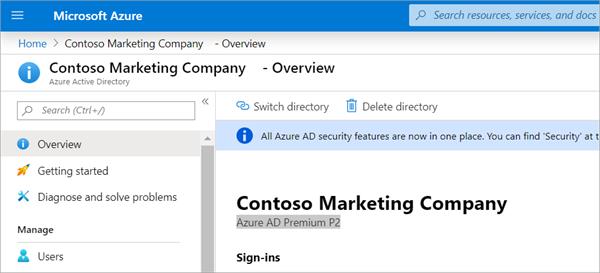
Refresh the browser until you see Azure AD Premium P2 under the organization name. It may take a couple of minutes.
Add a new user
-
First, let's make sure you're logged in as an administrator for the organization you created earlier.
In the Azure AD organization, you created, under Manage, select Roles and administrators. Your role should be set as a Global Administrator.
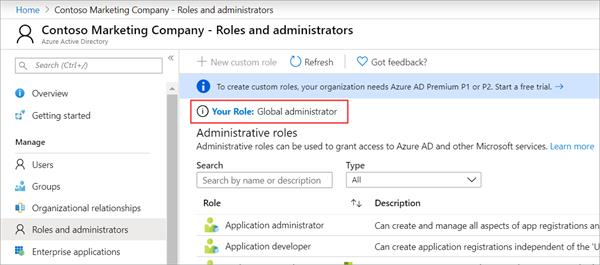
If it's not, in the upper-right corner of the Azure portal, select your profile and select the Switch directory. Under All directories, select the organization you created.
-
Now let's create a user account.
In the Azure AD organization, you created, under Manage, select Users > New User.
-
The User pane now appears. Provide the following values:
- User Name: chris@contosomarketingXXXXXX.onmicrosoft.com. Use the domain name you noted earlier.
- Name: Chris Green
-
Select Show Password, and copy it somewhere you can refer to it later.
-
Select Create. The user is now created and registered to your organization.
You've now created a new user.
Delete a user
You can delete users after they're created.
- In your Azure AD organization, under Manage, select Users.
- Select Chris Green from the list.
- Select Delete user. If you don't see that option, select More.
- When you're asked to confirm your deletion, select Yes.
You've now removed a user.
Recover a deleted item
You can restore deleted users. View the list of the deleted users, and then restore one.
- In your Azure AD organization, under Manage, select Users > Deleted users.
- You now see all of the users that were deleted within the last 30 days.
- Select Chris Green and Restore the user.
- Select Yes to confirm.
- Verify that Chris Green's account is recovered by selecting All users to see it in the list.
You've now recovered a deleted user.